Showing posts with label putty. Show all posts

SSH proxying via Apache

Been working out of a customer site in the past few weeks and their firewall is a bit finicky. One day it would let me ssh into my office fine and the next day it would just kick me out right after the initial handshake. It doesn't actually refuse the connection at the onset. It would connect and then immediately drop the connection. Their IT guys tried to tell me it's my server, not their firewall that was the culprit. Hey, I'm an IT guy too, buddy! (amongst other things). If I can connect fine from my home network and two other guys can also connect from their home, I'm no Sherlock but something tells me it ain't my server. As improbable as it may be, because I know you think your firewall is perfect and that you haven't made any change to it that might cause this. My friend, I'd hate to tell you this but, it's your firewall! ;-)

Right. Next time, you try telling your customer's IT guy that his network firewall is faulty. See if that will get you anywhere.

Oh well. At least this gave me the chance to look into enabling our web server to allow SSH proxying. Found a useful article here: Tunneling SSH over HTTP(S).

This is essentially what you need to add to your httpd.conf on the Appache server:


# HTTP Proxy for SSH
AllowCONNECT 22
ProxyVia On
<ProxyMatch (192.168.1.1)> # Internal IP of your SSH server
Order deny,allow
Deny from all
### External (customer) sites allowed to connect
Allow from 199.243.1.61
Allow from 74.100.102.21
</ProxyMatch>


Then, to connect from the remote site, configure your PuTTY Connection host name to 192.168.1.1 (the internal IP address of your SSH server), set Connection>>Proxy setting to use HTTP proxy, enter in the public hostname and port of your Apache server.
That's it. Painless.

A slight diversion from real work, but this will come in handy the next time I'm at a customer site that blocks out all ports except port 80. I need my network to follow me everywhere I go. I'm effectively crippled without it.

Unless...I wonder, what would happen if the customer's network itself uses a proxy server to get out to the Internet...
Oh well. Not my problem to worry about right now. Will deal with it when I run into it.

Accessing your intranet web sites through an SSH tunnel

If, from your home, you're connecting to your company's network via a Linux SSH server, and would like to to be able to access all of the corporate intranet web sites, here's how.

First, some assumptions, your SSH server machine must have the following software installed:

  • an SSH server that support SSH2 protocol
  • SSH daemon running with port-forwarding enabled. RedHat Linux has it enabled out-of-the-box.
  • a web (outbound) proxy/cache daemon. RedHat Linux comes with Squid. Note what port your proxy server is running on. Squid runs on port 3128 by default.


Instructions:
You'll be connecting to the SSH server using PuTTY.

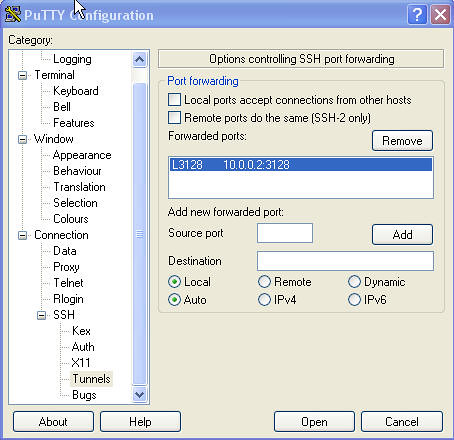
  1. Set up a port-forwarding tunnel as follows: L3128=<your_proxy_server_ip_address>:3128

    View Full Image
  2. Connect to your SSH server using the above new settings
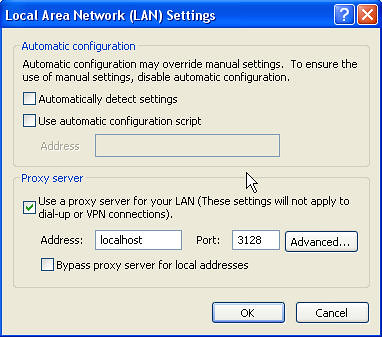
  3. Configure your browser proxy setting to use localhost:3128 as the proxy server.

    View Full Image
  4. Now restart your browser, and try accessing an internal web site, for example: http://shrike.karora.ca:8080/supportwiki/


Internal host names will work, since the browser now uses the DNS server on the proxy server for name resolution. The side effect to this is that you're now surfing the web as if you're doing it from your corporate office's computer. So beware of nosy, sniffy network administrators. ;-)

The whole thing is relatively simple to set up. The one pain point is the tunnel forwarding setup in PuTTY, not too intuitive for the non-techie users.

I've been thinking of writing (if I ever get any down time, that is) a Java Webstart application that does what PuTTY does, but simplifies the setup for the novice users. The administrator would configure the appropriate tunnel setting on the server side, then send a JNLP URL to the user to click on. The JWS application will launch and will take care of all the config stuff. The user won't have to mess with port forwarding settings or browser proxy settings, whatsoever.

If anyone knows anything out there that already does something like this, please let me know.

Who needs GoToMyPC ;-)

GoToMyPC lets you access your PC desktop remotely from a web browser, for a fee, of course.

I think here's the next best thing: SSH + Windows XP Remote Desktop Connection. You use your SSH client connection to create a secure tunnel to your Remote Desktop PC. Granted, it's not the same as accessing your desktop through a browser, but...

If you're using Windows XP at home and you have an SSH server running on your home network, chances are you already know how to do this. Go and read more Dilbert--the rest of this article may not apply to you.

If you don't have an SSH server, and want to, install RedHat Fedora.

By default Remote Desktop Sharing is disabled on XP. You'll need to turn it on via the My Computer properties dialog.


In order to set up your tunnel, first, you'll need to download PuTTY, a very well-known SSH client created by Simon Tatham. If you're not familiar with this tool, here's the User Guide.

To create an SSH tunnel through PuTTY is quite simple. From the Tunnels Panel for your connection, add the following mapping:

  • Source Port: 127.0.0.2:3389
  • Destination: <Your RDP computer's IP address>:3389
    e.g. 192.168.2.100:3389
  • Type: Remote


Now, after you've established the SSH session with your server, you should be able to start up your Remote Desktop Connection client and connect to your remote desktop by entering the 127.0.0.2[:3389] in the Destination field (the part in the square brackets are optional). The Remote Desktop Connection client is found on your Start>Program>Accessories>Communications menu, if installed. If you don't have it installed already, you can download it here

For convenience, I usually put a shortcut on my Desktop, pointing to <Path_To_PuTTY_Program_Folder>\plink.exe -load <My SSH Tunnel Session Name> -l <login name>. This allows me to establish the tunnel with one single click. All I need to do after that would be to type in my password, when prompted.
PuTTY configuration screen

PuTTY Tunnel configuration screen

So why 127.0.0.2 instead of localchost [127.0.0.1]? Well, if you're using Windows XP on your local PC and you try to connect your Remote Desktop Client to localhost, you'd get a message by the application saying "I can't connect to myself" (I'm paraphrasing). The 127.0.0.2 IP address tricks the app into thinking that it's actually connecting to a remote computer instead of localhost.

Some of you nerds out there might wonder: why hassle with the SSH tunnel? Why not just connect to RDP directly? Well, I'm of a suspicious mind, and for some strange reason, I feel a little more secure when connecting through a 1024-bit DSA encrypted channel.

You can probably see that SSH tunnelling approach is not only limited to RDP, but can be used to create a secure tunnel into virtually any TCP service on the remote network: NetMeeting, VNC, Exchange Server.

I now have my mind set on my next toy: a wifi PDA running Windows Mobile. This way I can access my office desktop PC everywhere I go.